Once you have created one or more Jadu Connect Case Forms, you will need to add the fields that you want to either capture or update at the associated stage of your process.
Adding Fields to a Case Form
- Create form: Only add the fields necessary for initial case creation to your Create form to keep things simple (more fields can be added to a case later via transitions and Normal forms).
- If you are not sure which fields to use, refer to Identify Jadu Central Fields to Retain and Put Into Jadu Connect for guidance.
- Normal form: Only include the fields on a Normal (transition) form that need to be updated or added at that stage of the workflow.
- Edit form: We recommend adding all fields to the Edit form for production support.
- Open your case type in Jadu Connect using the case type link provided to you from the Jadu team.
- Note: If you cannot locate your case type link, contact Technology help.
- Select the Forms tab.

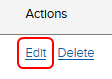
- Find the Edit link for the form you want to add fields to.
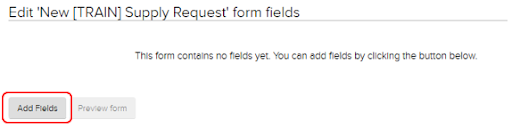
- Near the bottom of the screen, sekect the Add Fields button.
- Select the Case field type from the dropdown.

- In the case field lookup, select the fields you want to add to your form.
- You can start typing in the field and the list filters for you or scroll through the dropdown to select your fields.

- You can start typing in the field and the list filters for you or scroll through the dropdown to select your fields.
- Select the Add To Selection button to add your chosen field to the Selected Fields list.
- You can continue selecting and adding as many fields as needed.

- Required: You must include the Form Name and Form Reference fields.

- You can continue selecting and adding as many fields as needed.
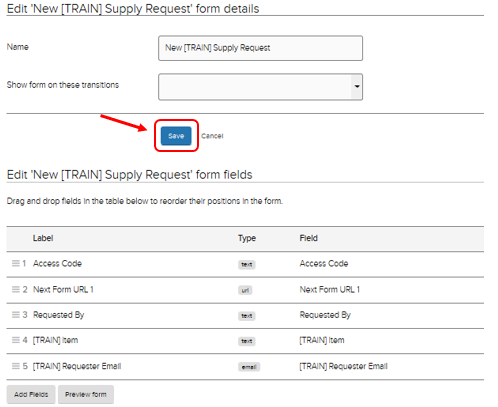
- Select Save in the middle of the page when finished.
- Note: You may need to scroll up to see the Save button if you have a long list of fields.
- Note: You may need to scroll up to see the Save button if you have a long list of fields.
Renaming fields on a case form
Fields can be re-named in order to help you with mapping in your Jadu Central Case action templates. For example, if you're using a series of generic fields, it can be helpful to include what Jadu Central form values they should be linked to in the label.
- Important Best Practice: For future troubleshooting purposes, if you change a field label, we recommend keeping the original field name and appending your qualifier to it.
- For example, if using the fields Approver 1 - Email and Approver 2 - Email, update the labels to Approver 1 - Email (Advisor) and Approver 2 - Email (GPC), respectively..

- For example, if using the fields Approver 1 - Email and Approver 2 - Email, update the labels to Approver 1 - Email (Advisor) and Approver 2 - Email (GPC), respectively..
Reordering fields on a case form
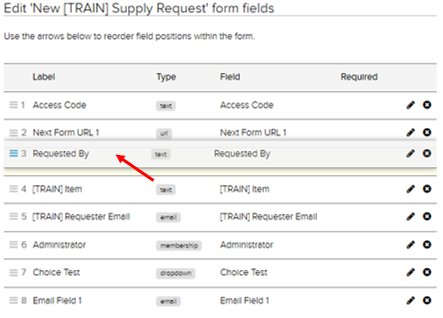
Fields can be re-ordered on a form by dragging and dropping to their desired position. The order displays in the Jadu Central Case action templates when mapping Jadu Central fields to Jadu Connect forms.